
Northgate Help Desk
  • Home
  • About
    • Welcome
    • The Team
    • Help Desk Curriculum
    • Contact
  • Digital Citizenship
    • Google & Digital Literacy
    • iKeepSafe
    • Copyright Challenge
    • Creative Commons
    • 6 Pillars of Success for Online Digital Citizenship
    • Digital Literacy Curriculum
    • Privacy and Reputation Online (PRO)
  • Genius Hour
  • Media
    • NHS Youtube Channel
    • NHS Quarterly Newsletter
    • App Review Tool
  • Students
    • Student Portfolio
    • Cool Tech Resources
    • Customer Service Guidleines (WIRED)
    • Student Blogs >
      • Blogging Format Suggested Layout
      • Sample Student Blogs
      • Blogging Rubric
    • Individual Learning Endeavor - 20% Time (Tuesdays) >
      • What is 20%Time?
      • Individual Learning Endeavors (IL- Daily >
        • S.M.A.R.T
        • PLANNING GOAL SHEET (S.M.A.R.T.)
        • ILE MIDTERM FINAL/PRESENTATION
        • Presentation Rubric
    • ScreenCasting Assignments (4 per Semester) >
      • Screencasting Guidelines
      • Screencasting Rubric
    • CodeCrawl
    • Calendar
  • Teachers
    • All things Google
    • 'Appy Friday
    • Chromebooks >
      • The First Hour
      • Adjust to your new keyboard
      • Useful Keyboard Shortcuts
      • What is Chrome OS?
      • Understand the Chrome Web Store (APPS & Extensions)
      • How to Add an App or Extension?
      • More Support
    • Chrome Extensions
    • How to use Twitter effectively
    • NHS Data Collection
    • Curriculum Maps & Syllabus upload
    • Storytelling APPS
  • Contact Us
All information courtesy of Chromebooks: A Resource Guide for BPS Educators

How to Add an App or Extension:


1. Search for the app or extension you wish to add (start with 3 to 5 you think might be useful) or you can start here:
10 Useful Chrome Extensions to Try in 2015 - An easy way to distinguish an extension from an app is the puzzle piece icon of an extension.

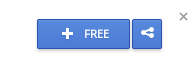
2. Click on the blue +Free button. The share icon next to the free button allows you to send a link to the app/extension via Google+ or Gmail.

Picture
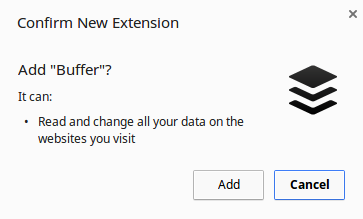
 3. A box will appear prompting you to confirm the addition of the new app or extension. The blue +free button will change to "checking." Once you hit "confirm" the app will be added to your Apps Launcher and the Extension will be added to the right of the Omnibox.
Picture


4. All your extensions get added to the right of your Omnibox. 

Picture


5. To disable or remove an extension, click on the "customize Google Chrome button"
Picture

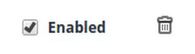
6. Then deselect the enable check box if you wish to disable it, or click the trash icon if you wish to remove the extension from Chrome. Note that because extensions are "mini programs" they may impact the speed of your device if you end up with too many.
Picture

Featured Articles

Evernote Review
Tech Analysis - Windows 10

Company

About
The HelpDesk

Support

Contact
FAQ
© COPYRIGHT 2016. ALL RIGHTS RESERVED.